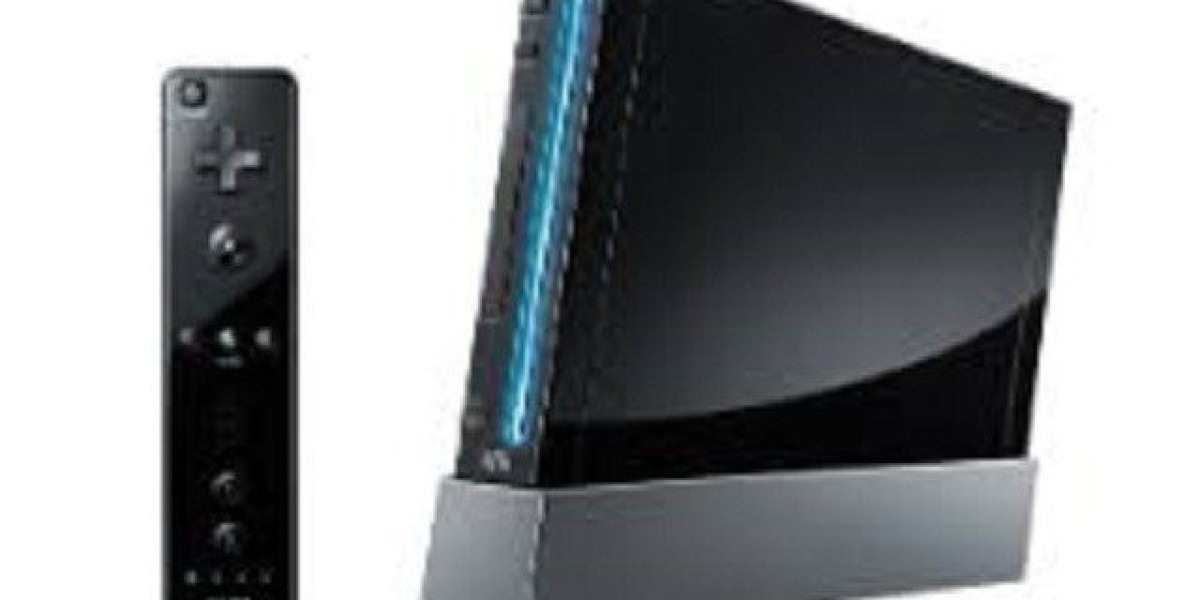

The Nintendo Wii was one of the most popular gaming consoles of its time, but to this day, there are plenty of people who still love playing games on it. However, there's no denying that some of the popular games that were released for the Wii are quite expensive and difficult to find. But worry not, there is a solution that allows you to play all Wii games and Wii U games on your PC, with high-quality graphics! The answer is Dolphin Emulator, and in this blog post, we will guide you through the process of using it to get the most out of your Wii.
Dolphin Emulator An Overview
Dolphin Emulator is a free and open-source software that allows you to play Nintendo Wii and GameCube games on your PC. It was developed by a group of programmers and is constantly updated with new features and compatibility improvements. In order to run Dolphin, you'll need a PC with a decent graphics card and a good processor. But don't worry, even an average gaming PC will be sufficient to run most Wii games. Dolphin is also compatible with Xbox and PlayStation controllers, which makes it easier to play games on your PC.
Dolphin Emulator Downloading and Installing
To get started with Dolphin Emulator, head over to their website and download the latest version. Once downloaded, extract the files to a folder on your computer. Now, run the Dolphin Emulator executable file to start the software. Before you can start playing games, you need to add a ROM to the emulator. A ROM is a file that you can download from various websites, which contains the game data. We recommend downloading ROMs only from trusted websites.
Adding a ROM to Dolphin Emulator
To add a ROM to Dolphin Emulator, click on the "Browse" button and navigate to where you saved your ROM file. Select the file and click "Open". Dolphin Emulator will now add the ROM to its list of games. You can then click on the game to start playing.
Configuring Dolphin Emulator
Before you start playing games, it's a good idea to configure the Dolphin Emulator settings to optimize the performance. Under the "Graphics" tab, you can select the resolution and graphics settings. We recommend setting the resolution to 1080p and setting the graphics settings to the highest quality your PC can handle. Under the "Controllers" tab, you can select which controller to use. If you're using an Xbox or PlayStation controller, you can easily map the buttons to match the Wii controller layout.
Playing Wii Games with Dolphin Emulator
Now that you've configured Dolphin Emulator, you can start playing Wii games on your PC. Simply click on the game in Dolphin's game list and hit "Play". Dolphin Emulator supports save states, which means you can save and load your progress in any game anytime. You can also increase the game's speed by using the "Turbo" button, which will make the game run at up to 1000% of its original speed. You can download free roms games at https://techtoroms.com/roms/nintendo-wii/
Dolphin Emulator is a powerful and easy-to-use software that allows you to play Nintendo Wii and GameCube games on your PC with high-quality graphics. With the ability to run Wii and GameCube games, Dolphin Emulator provides an opportunity to revisit your favorite games and play them on your computer with ease. With the guide above, we hope you have a better understanding of how to get the most out of your Nintendo Wii games with Dolphin Emulator. Happy gaming!